 Login
Login
Infant CPR Anytime Troubleshooting Guide
Access The Course Site
Need help accessing the Infant CPR Anytime course webpage? Follow the steps below to scan the QR code or enter the course web address in your browser.
Scan the QR code
A QR code is a square barcode that you can scan with the camera on a smartphone or tablet. The QR code on your Get Started Guide will take you directly to the Infant CPR Anytime course webpage.
How to scan the code
1. Connect your device to the internet. Make sure your smartphone or tablet is connected to Wi-Fi or a mobile network.
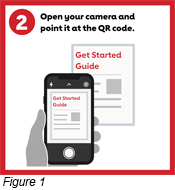
2. Open the camera. Open the camera app you normally use to take pictures.
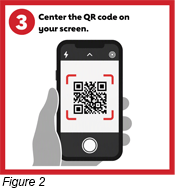
3. Point the camera at the QR code. Hold your device so the entire QR code appears on the screen. You do not need to take a picture.
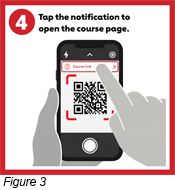
4. Tap the message that appears. A link or notification should appear on your screen. Tap it to open the Infant CPR Anytime course webpage.
5. Follow the instructions on the course webpage.
If the QR code does not scan
- Make sure the entire QR code is visible on your screen.
- Move your device a little closer to or farther away from the code.
- Hold the device steady for a few seconds.
- Make sure there is enough light and no glare is covering the code.
- Check that your camera lens is clean.
- Try entering the web address manually using the instructions below.
Enter the web address in a browser
If you cannot scan the QR code, you can type the web address into a browser on an internet-connected phone, tablet, or computer.
How to enter the web address
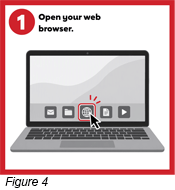
- Open a web browser. Common browsers include Safari, Chrome, Edge, and Firefox.
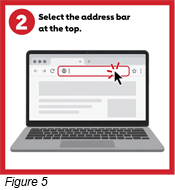
- Select the address bar. The address bar is the long field at the top of the browser where website addresses appear.
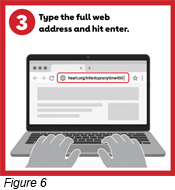
- Enter the complete web address: heart.org/adultcpranytime450
- Check the address. Make sure there are no spaces or missing characters.
- Select Go, Enter, or Return. The Infant CPR Anytime course webpage should open.
- Follow the instructions on the course webpage.
Helpful Tip
The address should be typed into the browser’s address bar, not into a general website search box. If search results appear instead of the course page, select the address bar and try entering the complete address again.
Still need help?
If you are still unable to open the course webpage from the instructions, check these potential fixes. If none of these suggestions solve the issue, our customer support team can be reached at 1-800-242-8721.
If the page does not open:
- Confirm that your device is connected to the internet.
- Check the web address for typing errors.
- Refresh or reload the page.
- Try opening the page in another browser or on another device.
- Try scanning the QR code again.